Microsoft yesterday announced in their blog post that the Beta Build of their Edge Browser is generally available.
If you don’t know yet, Microsoft is replacing “old” Edge which had the EdgeHTML rendering engine with Chromium, a rendering engine Chrome also uses.
To this day, two channels were available for use: Canary and Dev. Canary updates daily and Dev weekly. The Beta channel should be a stable release containing the properly tested features and updates every 6 weeks.
Enterprise Customers can also download the Policy Files with the Administrative Templates (.admx). Some interesting settings are roaming profiles and Internet Explorer Mode. Roaming profiles make the deployment in RDS (formerly Terminal Services) environments very appealing.
Microsoft Edge can be downloaded here – you have the option to download any of the 3 different builds.
Are you trying to delete a local Windows User Profile because something doesn’t behave the way it should? Here is a quick and easy tip to remember.
Deleting a user profile is very straightforward, if you know how to. Just deleting C:\Users\<username> is not enough though. In fact stranger things might occur if you just delete the user’s folder.
There are two ways of deleting a user profile:
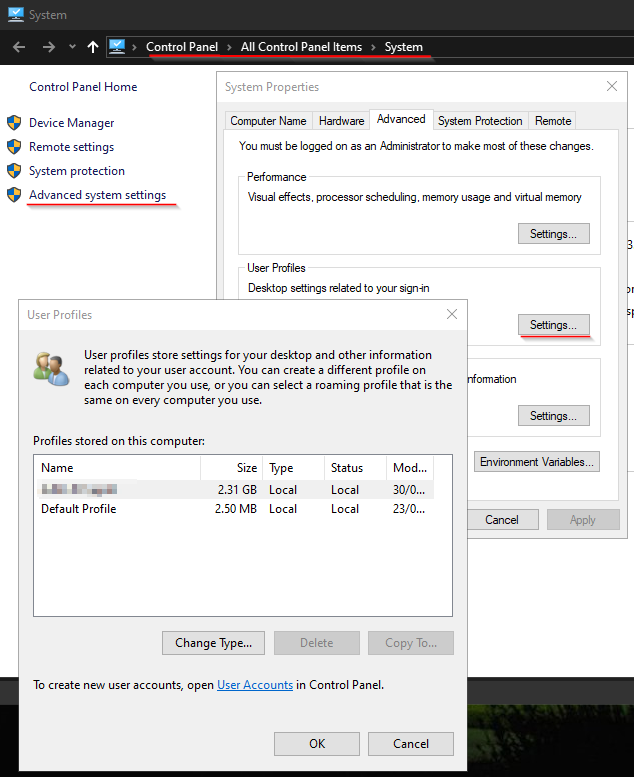
Method 1: Advanced System Settings (Very easy)
By going into the Advanced System Settings you can delete a user profile. The user obviously has to be logged off, otherwise the “Delete” button will be greyed out.
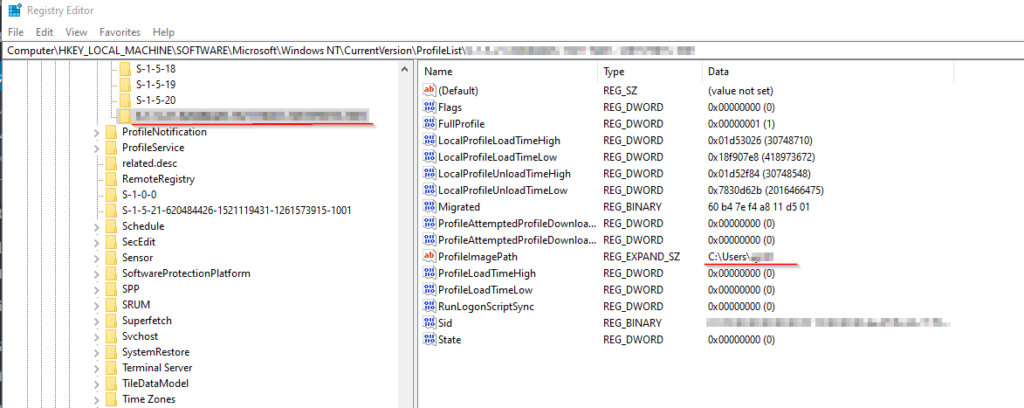
Method 2: Regedit
Note: It is always a good idea to make a backup of your current Registry entries BEFORE making any changes. You could for example rename the registry key or “Export” it by right clicking on the key you want to backup. Sub-keys are also backed up.
There are cases where the user profile is not listed in the Advanced System Settings, but the user folder is present under C:\Users. In that case you can firstly delete the profile SID under
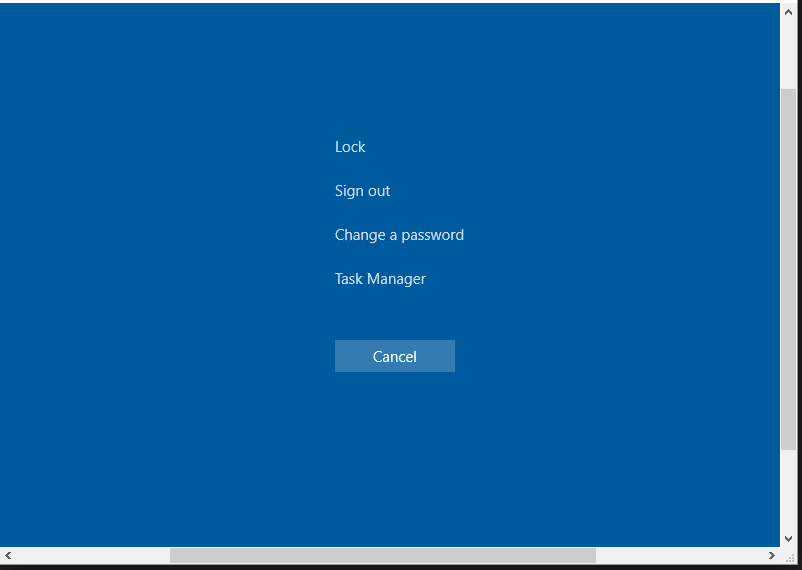
Since CTRL+ALT+DEL affects your local machine, you can send CTRL+ALT+END to your RDP Session in order to do tasks like Task Manager, Lock the Session or change your admin password, all inside your RDP connection.
Here is a quick tip to install the VMware PowerCLI, which is – like the name says – for Windows PowerShell.
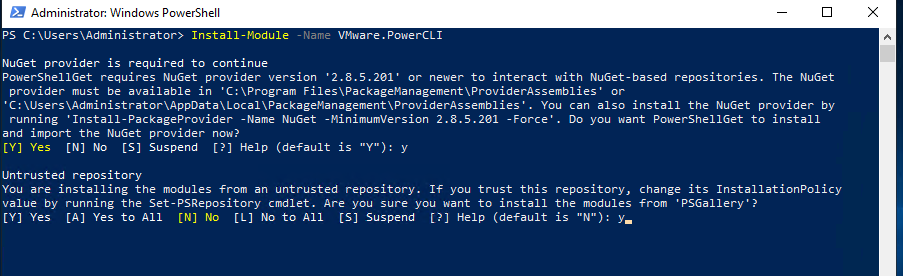
To initiate the installation process, type this command into the Powershell Console:
Install-Module -Name VMware.PowerCLI
Powershell will ask you if you wish to install “NuGet”, which is required to automatically download and install VMware PowerCLI from PSGallery. You also have to trust the PSGallery repository in order to proceed with the installation.
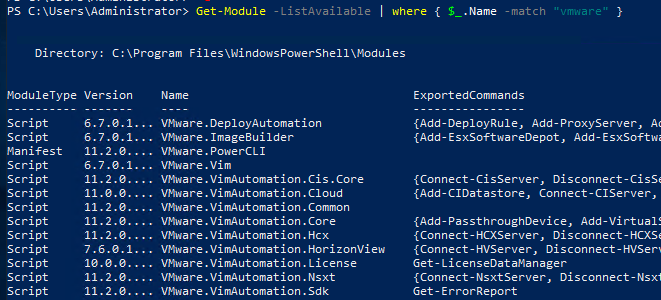
Now you can list all of the VMware PowerCLI Modules:
Get-Module -ListAvailable | where { $_.Name -match “vmware” }
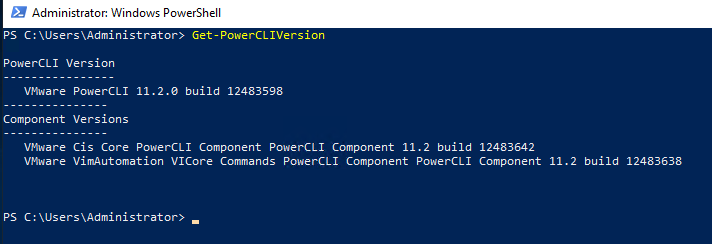
Or just check your currently installed VMware PowerCLI version:
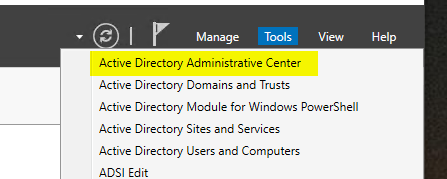
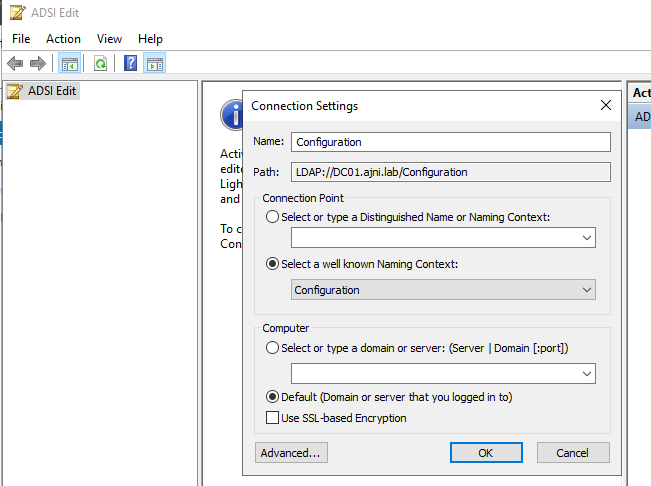
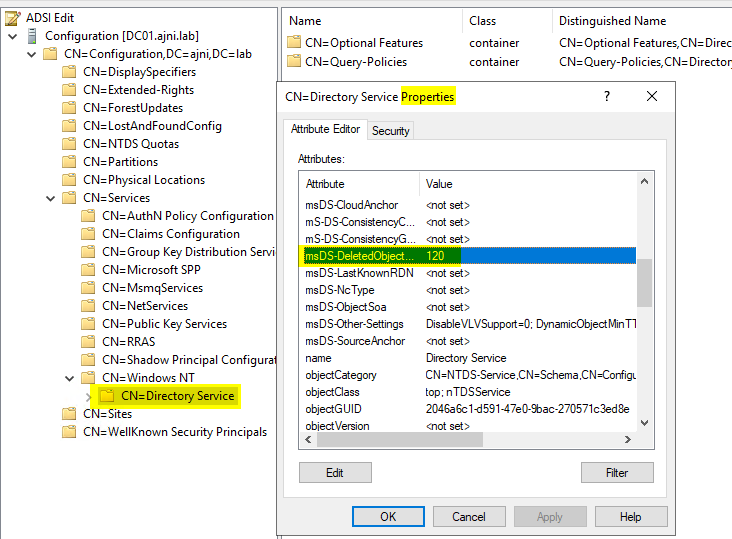
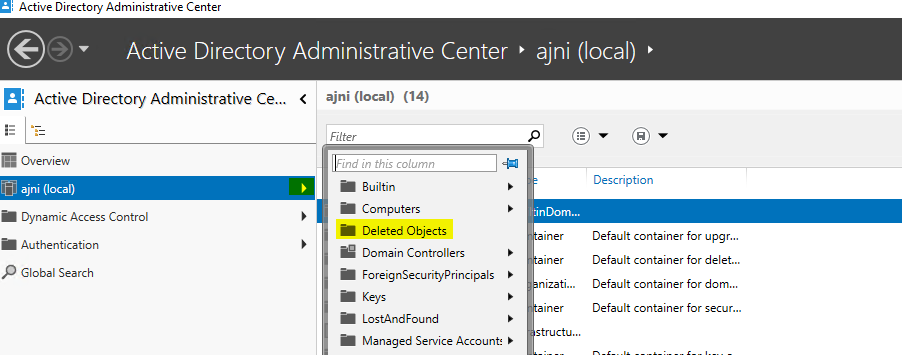
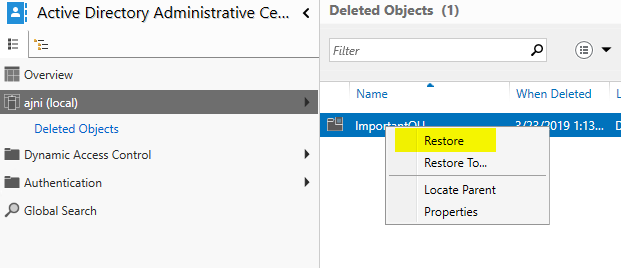
With Windows Server 2008 R2, Active Directory has now a recycle bin. With this feature you do not have to use for example Windows Server Backup to initiate an authoritative AD restore, instead you can quickly recover deleted Users, OUs, Groups and other objects through Active Directory Administrative Center (Windows Server 2012 an upwards) or PowerShell
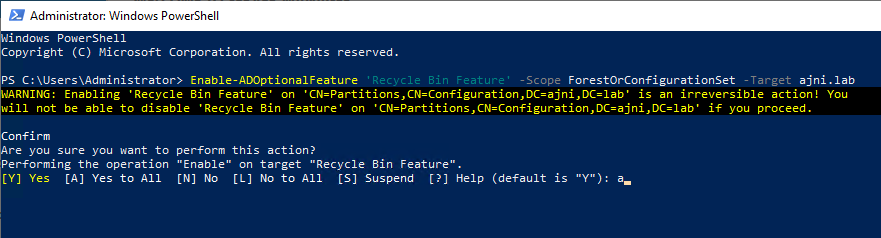
Enabling AD Recycle Bin (PowerShell commands
Enable-ADOptionalFeature ‘Recycle Bin Feature’ -Scope ForestOrConfigurationSet -Target ajni.lab
We can also restore from Active
Directory Administrative Center (ADAC)
Note that while AD Recycle Bin gives you the
flexibility of quickly restoring deleted AD Objects, you should also have a
functional Windows Server Backup and VM Backup with solutions like HPE Data Protector
or VEEAM. Just in case something goes horribly wrong!