Home
Microsoft 365
Linux
Windows
Powershell
Cloud Computing
    Citrix Xendesktop
    Citrix XenApp
Useful links
About
  • Home
  • Microsoft 365
  • Linux
  • Windows
  • Powershell
  • Cloud Computing
    • Citrix Xendesktop
    • Citrix XenApp
  • Useful links
  • About
ajni.IT -
Windows Client OS•Windows Server

RDP freeze after login with Server 2025

April 24, 2025 by AJNI No Comments

Microsoft seems to add new bugs more than features to new Windows Server releases. If you are having a static picture after logon in Windows Server 2025, this GPO might help you. We do not really know why it happens, but this was a solution that worked for me.

Computer Configuration > Administrative Templates > Windows Components/Remote Desktop Services/Remote Desktop Session Host/Connections > Select network detection on the server > Use both Connect Time Detect and Continuous Network Detect

Some have suggested to set this configuration to “Turn off” but that did not help me out.

References:

https://www.reddit.com/r/sysadmin/comments/1irt8x3/rdp_issues_after_upgrading_to_server_2025/?rdt=55016

Reading time: 1 min
Windows Client OS•Windows Server

Find out which program deletes a file or folder with ProcMon

April 19, 2025 by AJNI No Comments

If you do not know which program or service is deleting your files or folders, ProcMon will help you do this. Firstly download it from http://live.sysinternals.com.

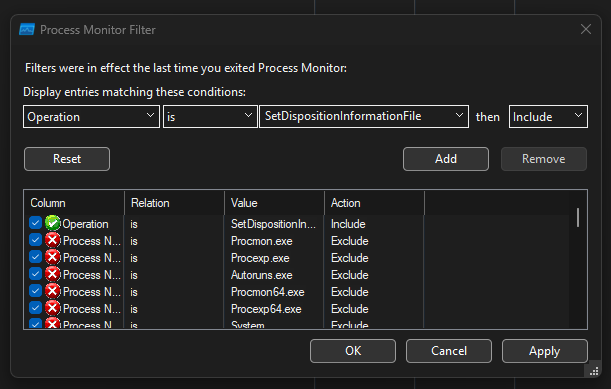
Once the program is executed add a new filter Operation is SetDispositionInformationFile

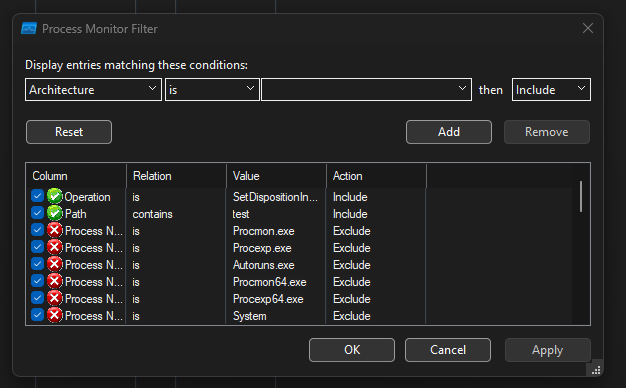
Afterwards add the file or folder that you want to monitor. Path contains FOLDERNAME. You can also insert the whole path to the folder. Afterwards hit ok.

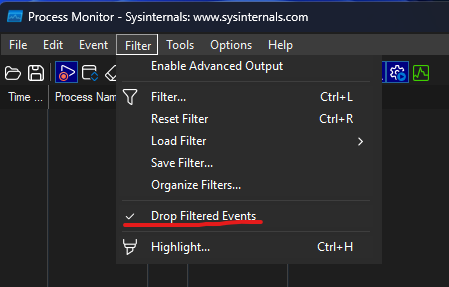
Also, to avoid using a lot of ram, configure “Drop filtered events” in case ProcMon will run for some hours.

Now patiently wait until the event occurs. Enjoy!

References:

https://blog.zensoftware.co.uk/2013/03/06/support-queries-shared-using-process-monitor-to-see-when-files-are-being-deleted/

Reading time: 1 min
Windows Client OS•Windows Server

GPO/Registry to Disable Storage Sense (Windows 10/11, Server 2022 and 2025)

April 12, 2025 by AJNI No Comments

Storage Sense is a new feature that came with Windows 10 and tries to delete temp folders or unused OneDrive data. The feature is good but sometimes some programs, probably not that good designed programs create files in the user’s temp folder and do not function properly after those files get deleted by Storage Sense feature.

So in order to disable the feature, here are some registry keys and GPOs that might help you:

HKEY_CURRENT_USER\Software\Microsoft\Windows\CurrentVersion\StorageSense\Parameters\StoragePolicy
DWORD 04 Value 0

Group Policy:

Computer Configuration > Administrative Templates > System > Storage Sense > Allow Storage Sense Temporary Files cleanup and set to disabled.

References:

https://winaero.com/disable-storage-sense-delete-temporary-files-windows-10/

Reading time: 1 min
Windows Server

Configure USB Redirection for Azure Virtual Desktop

February 19, 2025 by AJNI No Comments

Configuring USB Redirection for Azure Virtual Desktop for special devices, including COM/serial devices is very easy.

On the session host, you need this GPO:

Computer Configuration > Policies > Administrative Templates > Windows Components > Remote Desktop Services > Remote Desktop Session Host > Device and Resource Redirection.

Do not allow supported Plug and Play device redirectionDo not allow supported Plug and Play device redirection -> set to Disabled

Local device configuration:

Computer Configuration > Policies > Administrative Templates > Windows Components > Remote Desktop Services > Remote Desktop Connection Client > RemoteFX USB Device Redirection.

Allow RDP redirection of other supported RemoteFX USB devices from this computerAllow RDP redirection of other supported RemoteFX USB devices from this computer -> Set to Administrators and Users

Be sure the GPO has been applied. To be safe, restart the Session Host and your physical device. After starting the destop, you are able to redirect your devices:

Note: This only works on Windows Pro / Enterprise / Education Clients. Home Edition is not supported, unfortunately.

References:

https://learn.microsoft.com/en-us/azure/virtual-desktop/redirection-configure-usb?tabs=intune&pivots=azure-virtual-desktop

Reading time: 1 min
Azure•Cloud Computing•Powershell•Virtualization

Start an Azure VM with Azure Automation Webhooks

February 12, 2025 by AJNI No Comments

If you need a quick and dirty way to give a user the permission to start a VM without giving them access to the Azure Portal, Azure Automation Webhooks might help. You basically create a PowerShell script that starts the VM and then you configure the Webhook. The Webhook contains an URL which triggers the exceution of that script. Note that everyone with the URI is able to start the VM, which is not optimal.

Once you have created the Automation Account (easy), configure a new Runbook that starts the VM:

Disable-AzContextAutosave -Scope Process

$subscriptionID = Get-AutomationVariable -Name 'SubscriptionID'

Connect-AzAccount -Identity

Select-AzSubscription $SubscriptionId

Start-AzVM -ResourceGroupName "rgname" -name "vmname"

Configure the WebHook. You will get an URI. Save that URI somewhere, since you cannot view it after being created.

Afterwards, a user can run this line to start the VM:

Invoke-WebRequest -URI "https://xxxx.webhook.webhook.azure-automation.net/XXX" -Method POST -UseBasicParsing

Note: the automation account needs to have Virtual Machine Contributor rights on the resource group or subscription to start the VM.

References:

https://learnwithlenny.azurewebsites.net/2022/11/04/starting-an-azure-vm-using-webhook-powershell-exe/

Reading time: 1 min
Page 2 of 29«1234»1020...Last »

Like what you are reading? Buy me a coffee.

Tip Of the Day

  • OneDrive Error 700003 when trying to log in

    5 days ago

Keep in touch

Oh hi there!
It’s nice to meet you.

Sign up to receive awesome content in your inbox, every month.

Check your inbox or spam folder to confirm your subscription.

Categories

  • AI & Deep Learning (1)
  • Azure (20)
  • Citrix XenApp (21)
  • Citrix Xendesktop (13)
  • Cloud Computing (40)
  • Coding (1)
  • Hyper-V (10)
  • Linux (8)
  • Microsoft 365 (27)
  • Powershell (22)
  • Security (7)
  • VDI (16)
  • Virtualization (21)
  • VMware (12)
  • Windows (21)
  • Windows Client OS (41)
  • Windows Server (94)

Archives

  • December 2025
  • August 2025
  • May 2025
  • April 2025
  • February 2025
  • January 2025
  • December 2024
  • November 2024
  • October 2024
  • September 2024
  • July 2024
  • June 2024
  • May 2024
  • April 2024
  • March 2024
  • February 2024
  • January 2024
  • December 2023
  • September 2023
  • August 2023
  • July 2023
  • June 2023
  • April 2023
  • March 2023
  • January 2023
  • December 2022
  • November 2022
  • October 2022
  • September 2022
  • August 2022
  • July 2022
  • June 2022
  • May 2022
  • February 2022
  • January 2022
  • December 2021
  • November 2021
  • October 2021
  • September 2021
  • August 2021
  • June 2021
  • May 2021
  • April 2021
  • March 2021
  • February 2021
  • December 2020
  • November 2020
  • September 2020
  • August 2020
  • July 2020
  • June 2020
  • May 2020
  • April 2020
  • March 2020
  • February 2020
  • November 2019
  • October 2019
  • September 2019
  • August 2019
  • July 2019
  • June 2019
  • May 2019
  • April 2019
  • March 2019

ajni IT © 2019