Home
Microsoft 365
Linux
Windows
Powershell
Cloud Computing
    Citrix Xendesktop
    Citrix XenApp
Useful links
About
  • Home
  • Microsoft 365
  • Linux
  • Windows
  • Powershell
  • Cloud Computing
    • Citrix Xendesktop
    • Citrix XenApp
  • Useful links
  • About
ajni.IT -
Cloud Computing•Windows•Windows Server

Add a second Server 2019 Core Domain Controller in the Domain

July 6, 2020 by AJNI No Comments

Server Core Edition is very lightweight, needs less Windows Updates, less disk space, and should be used whenever possible. Basic features like AD DS, DNS, DHCP, or IIS are supported on Server Core. Administering is also very easy once it is a member of the domain because it can be added to Server Manager on a server with GUI. We are installing AD DS in this article.

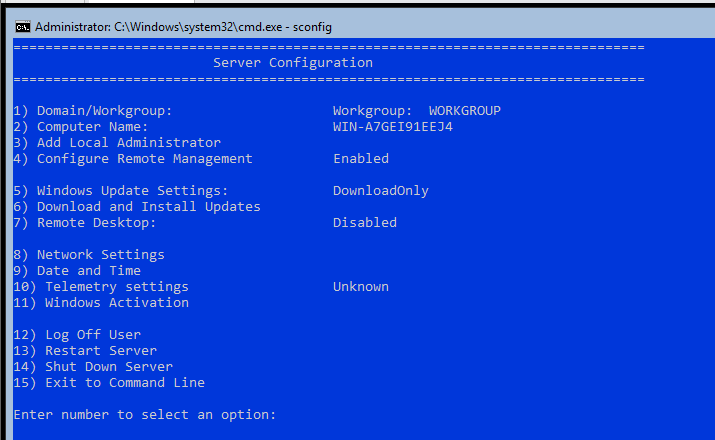
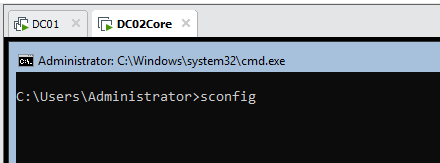
You can relatively easily change system settings on Server Core with the sconfig cmd tool.

sconfig
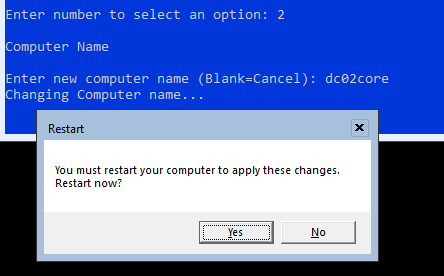
First change the server’s name (Option 2).
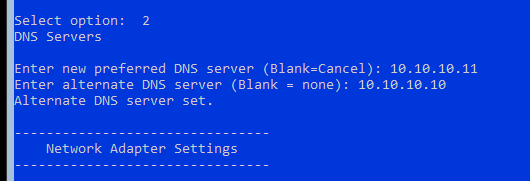
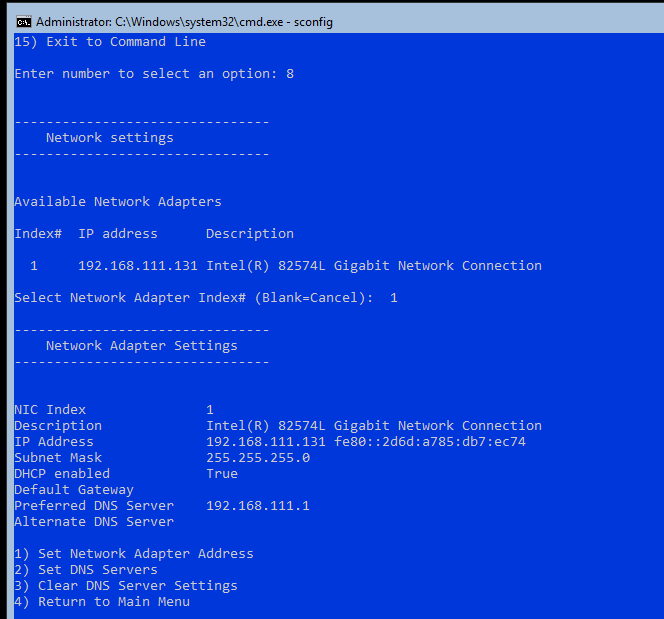
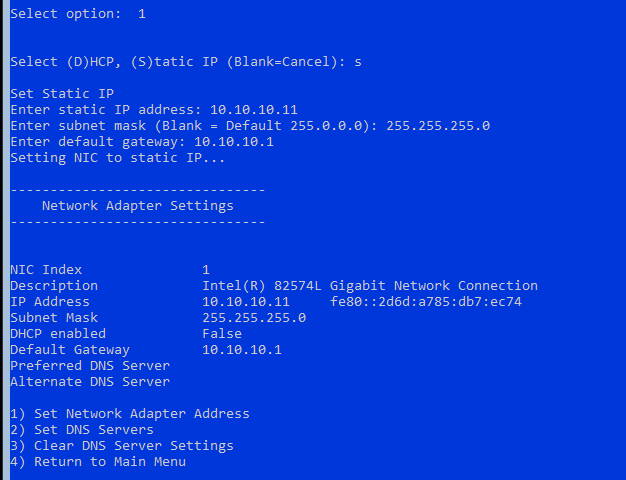
Afterwards set the IP address to a static one along with DNS servers (option 8).
Return to the main menu and perform the Domain Join (option 1).
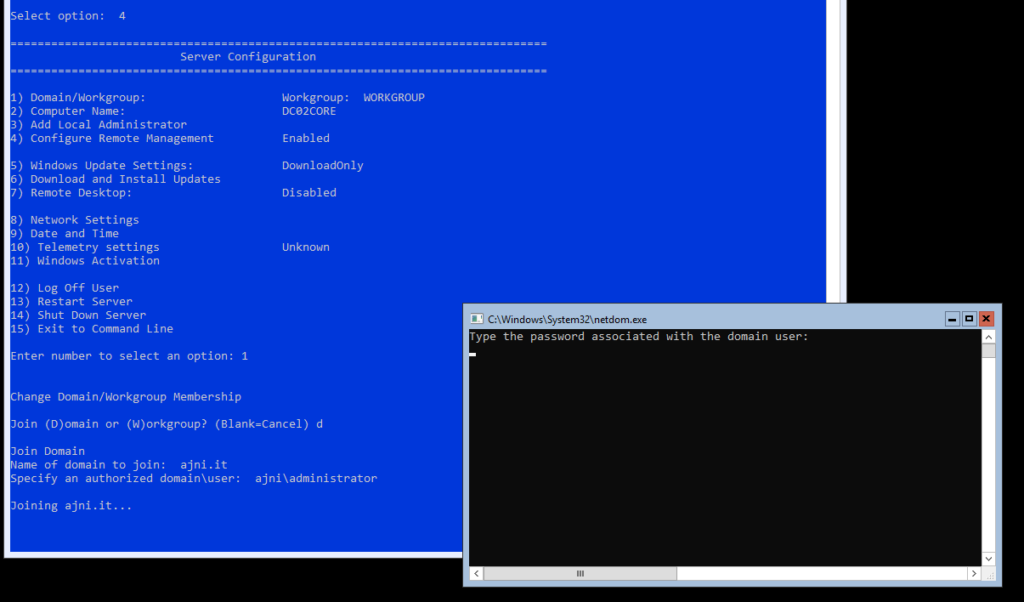
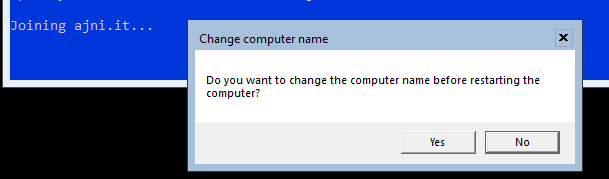
We don’t need to change the computer name. The server will be then rebooted.
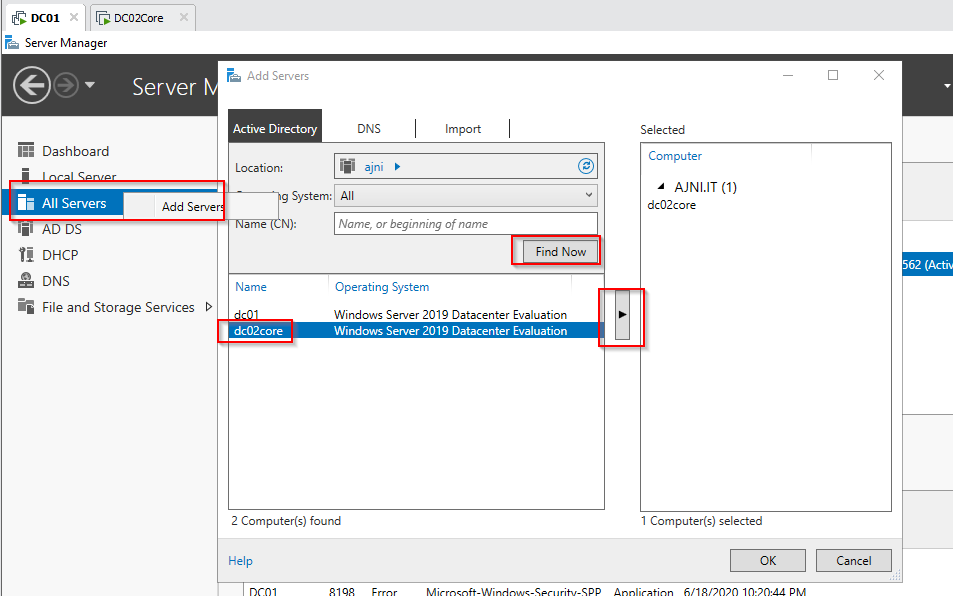
From now on, the fastest and simplest approach of administering your Windows Server Core is through Server Manager on a Server with GUI.
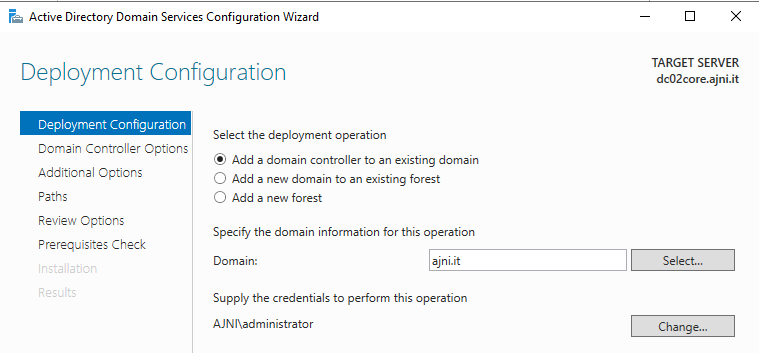
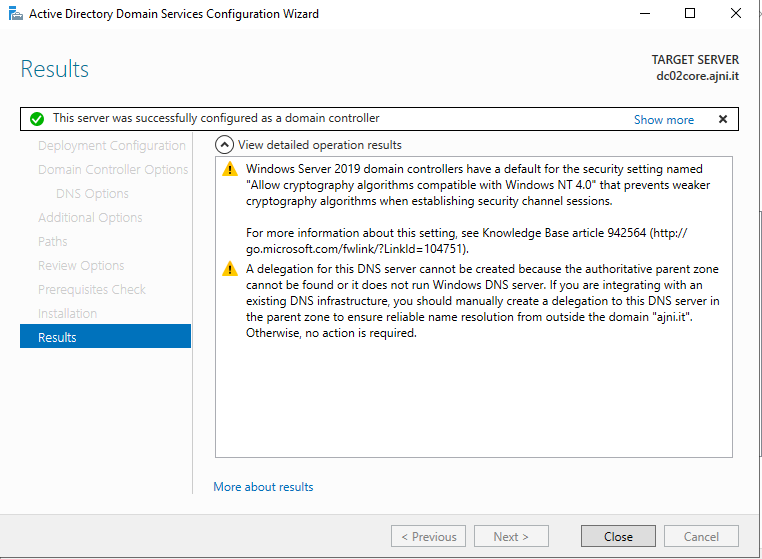
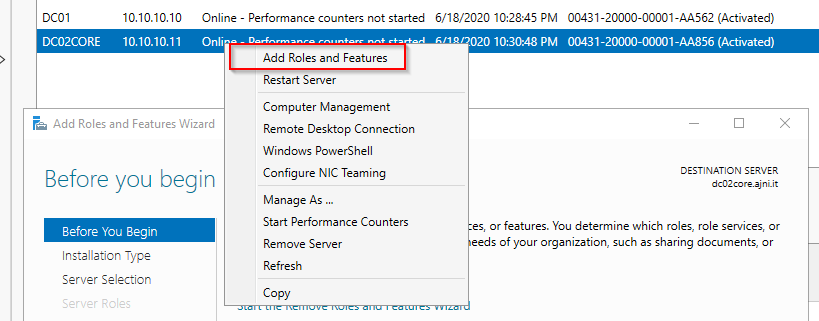
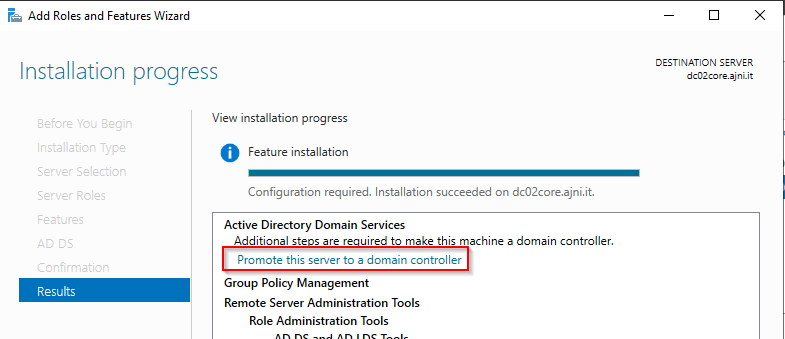
Add Roles and Features and promote the server to a Domain Controller. These steps are very straightforward. Some screenshots might be missing. If you want the step by step instructions, check out this post https://www.ajni.it/2019/10/server-2019-installing-your-first-domain-controller-in-a-new-domain/.
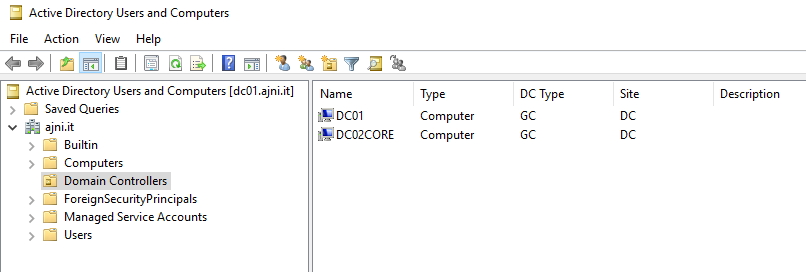
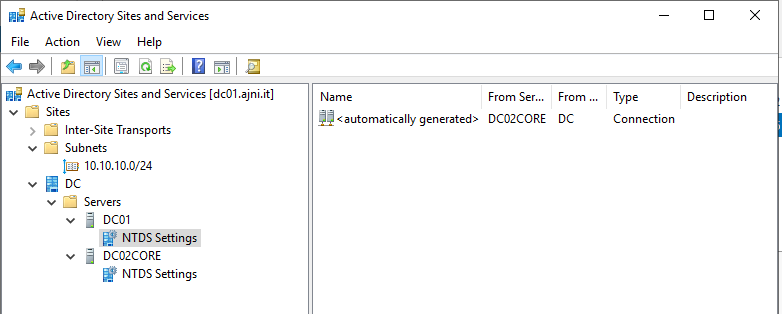
You can double check in Active Directory Users and Computers and Active Directory Sites and Services.
NTDS settings might not be created right away. Don’t panic, this might take some time. You shouldn’t create the entries manually.
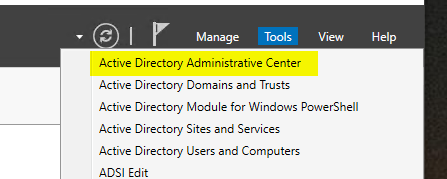
Reading time: 1 min
Powershell•Windows•Windows Server

Powershell: Getting Inactive AD Users

September 23, 2019 by AJNI No Comments

Hey folks!

Here is a quick way to find inactive AD Users in your environment. Get-ADUser ist the cmdlet we are going to use.

We are getting all users from the highest OU (domain.com) and using the Property LastLogonDate, which will not be returned if not specified in the -Properties parameter. After that a Where statement is going to show users that haven’t logged in since 90 days or more.

Get-ADUser -Filter * -Properties lastlogondate | where { $_.lastlogondate -lt (Get-Date).AddDays(-90) }

We could also specify the OU where the command is going to search:

Get-ADUser -Filter * -Properties lastlogondate -SearchBase “OU=TerminatedEmployees,DC=Company,DC=com”| where { $_.lastlogondate -lt (Get-Date).AddDays(-90) }|select Name,Lastlogondate

There is also the -SearchScope Onelevel parameter to determine that we are not going to search recursively:

Get-ADUser -Filter * -Properties lastlogondate -SearchBase “OU=TerminatedEmployees,DC=Company, DC=com” -SearchScope OneLevel | where { $_.lastlogondate -lt (Get-Date).AddDays(-90) }|select Name,Lastlogondate

Have fun!

Reading time: 1 min
Hyper-V•Powershell•VMware•Windows•Windows Server

How to enable AD Recycle Bin

March 23, 2019 by AJNI No Comments

With Windows Server 2008 R2, Active Directory has now a recycle bin. With this feature you do not have to use for example Windows Server Backup to initiate an authoritative AD restore, instead you can quickly recover deleted Users, OUs, Groups and other objects through Active Directory Administrative Center (Windows Server 2012 an upwards) or PowerShell

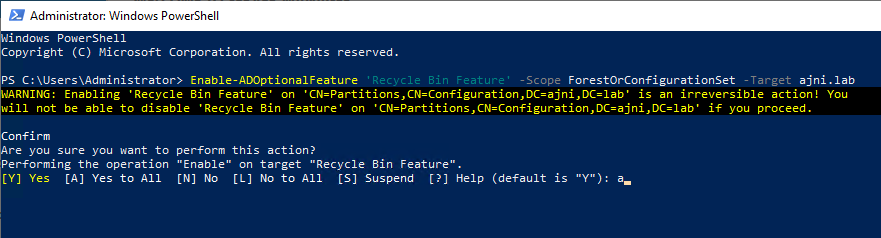
Enabling AD Recycle Bin (PowerShell commands

Enable-ADOptionalFeature ‘Recycle Bin Feature’ -Scope ForestOrConfigurationSet -Target ajni.lab

Type A (=Yes to All) to enable the feature

(Optional) Check Deleted Object’s Lifetime

Get-ADObject “CN=Directory Service,CN=Windows NT,CN=Services,CN=Configuration,DC=ajni,DC=lab” -Property msDS-DeletedObjectLifetime | fl

If you do not see the Property named “msDS-DeletedObjectLifetime”, it means that it has the default value of 60 days.

You can change is with this command – do not forget to replace DC=ajni, DC=lab with your domain name:

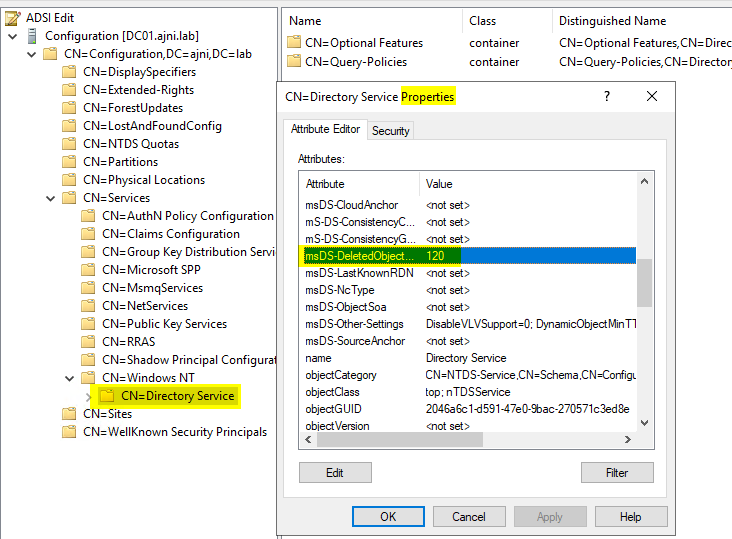
Set-ADObject -Identity “CN=Directory Service,CN=Windows NT,CN=Services,CN=Configuration, DC=ajni,DC=lab” -Partition “CN=Configuration, DC=ajni,DC=lab” -Replace:@{“msDS-DeletedObjectLifetime” = 120}

Checking the property again, you‘ll see your new value:

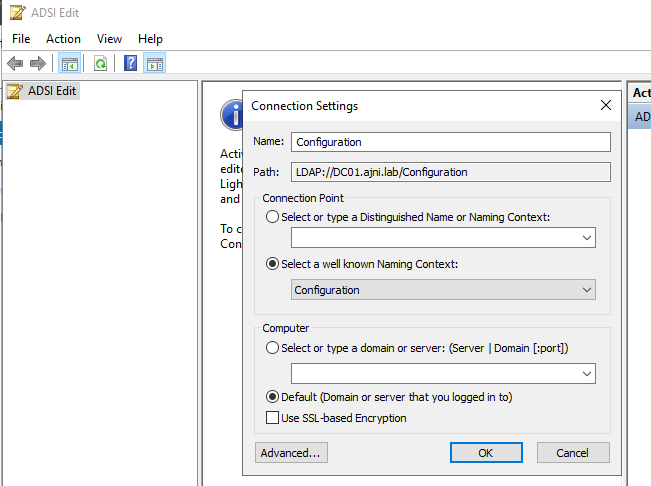
You can also have a look at this property with ADSIedit:

Restoring an Object

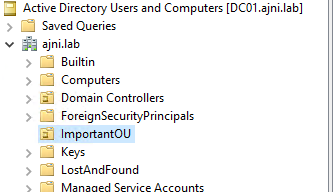
In our example we deleted an OU called “ImportantOU”

Let’s list all Deleted Objects:

Get-ADObject -filter ‘isdeleted -eq $true -and name -ne “Deleted Objects”‘ -includeDeletedObjects

And then restore our important OU. Before Restoring we can check if the Filter finds our OU:

Get-ADObject -Filter ‘msDS-LastKnownRDN -eq “ImportantOU”‘ -IncludeDeletedObjects

Now restore:

Get-ADObject -Filter ‘msDS-LastKnownRDN -eq “ImportantOU”‘ -IncludeDeletedObjects | Restore-ADObject

Our important OU is back from the dead:

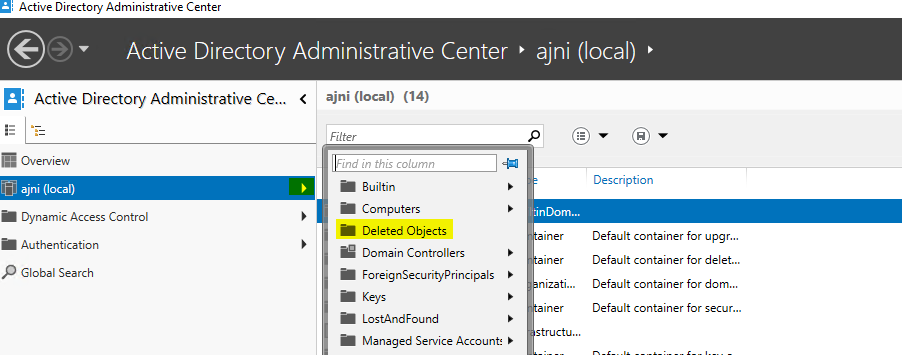
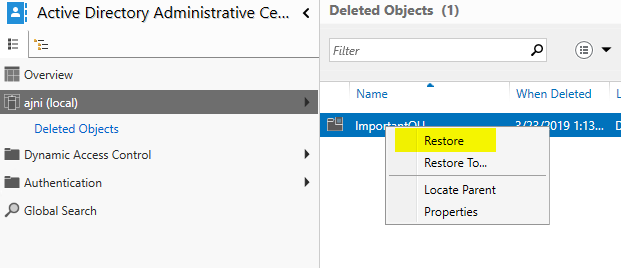
We can also restore from Active Directory Administrative Center (ADAC)

Note that while AD Recycle Bin gives you the flexibility of quickly restoring deleted AD Objects, you should also have a functional Windows Server Backup and VM Backup with solutions like HPE Data Protector or VEEAM. Just in case something goes horribly wrong!

Reading time: 1 min
Powershell•Windows•Windows Server

Get Locked Out Users in Active Directory (Powershell)

March 15, 2019 by AJNI No Comments

Hi Folks!

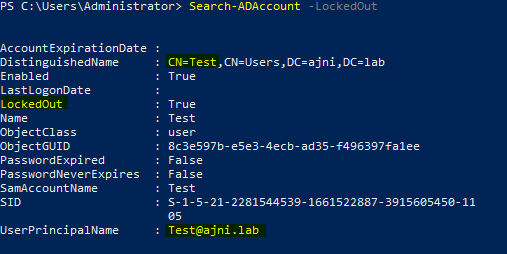
Here is a quick command to find locked out users in your domain. Pretty straightforward:

If that’s too much Information you can only select the username:

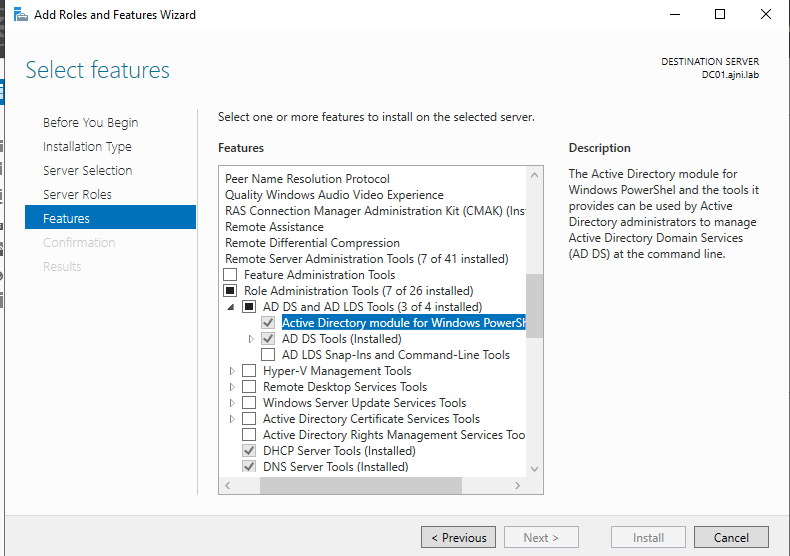
The command is not getting recognized? Be sure to install the RSAT (Remote Server Administration Tools) for AD DS (Active Directory Domain Services), which also install the Powershell Snap-In via Server Manager (if you are using a Windows Server OS to manage your AD):

Alternatively you can download the RSAT for Windows 10.

Reading time: 1 min
Page 3 of 3«123

Like what you are reading? Buy me a coffee.

Tip Of the Day

  • Why investing in ETFs is important

    1 month ago

Keep in touch

Oh hi there!
It’s nice to meet you.

Sign up to receive awesome content in your inbox, every month.

Check your inbox or spam folder to confirm your subscription.

Categories

  • AI & Deep Learning (1)
  • Azure (20)
  • Citrix XenApp (21)
  • Citrix Xendesktop (13)
  • Cloud Computing (40)
  • Coding (1)
  • Hyper-V (10)
  • Investing (1)
  • Linux (8)
  • Microsoft 365 (27)
  • Powershell (22)
  • Security (7)
  • VDI (16)
  • Virtualization (21)
  • VMware (12)
  • Windows (21)
  • Windows Client OS (42)
  • Windows Server (96)

Archives

  • January 2026
  • December 2025
  • August 2025
  • May 2025
  • April 2025
  • February 2025
  • January 2025
  • December 2024
  • November 2024
  • October 2024
  • September 2024
  • July 2024
  • June 2024
  • May 2024
  • April 2024
  • March 2024
  • February 2024
  • January 2024
  • December 2023
  • September 2023
  • August 2023
  • July 2023
  • June 2023
  • April 2023
  • March 2023
  • January 2023
  • December 2022
  • November 2022
  • October 2022
  • September 2022
  • August 2022
  • July 2022
  • June 2022
  • May 2022
  • February 2022
  • January 2022
  • December 2021
  • November 2021
  • October 2021
  • September 2021
  • August 2021
  • June 2021
  • May 2021
  • April 2021
  • March 2021
  • February 2021
  • December 2020
  • November 2020
  • September 2020
  • August 2020
  • July 2020
  • June 2020
  • May 2020
  • April 2020
  • March 2020
  • February 2020
  • November 2019
  • October 2019
  • September 2019
  • August 2019
  • July 2019
  • June 2019
  • May 2019
  • April 2019
  • March 2019

ajni IT © 2019